Want to predict your cloud costs with precision? The AWS Calculator is your ultimate tool for estimating, optimizing, and managing expenses across Amazon’s vast ecosystem of services. Let’s dive into how you can use it like a pro.

What Is the AWS Calculator and Why It Matters

The AWS Calculator, officially known as the AWS Pricing Calculator, is a free, web-based tool provided by Amazon Web Services to help users estimate the cost of using AWS resources. Whether you’re planning a new project, migrating from on-premises infrastructure, or scaling an existing application, this tool gives you a clear financial forecast before you spend a single dollar.
Unlike generic cost estimators, the AWS Calculator is deeply integrated with real-time pricing models across hundreds of AWS services, including EC2, S3, Lambda, RDS, and more. It allows users to build detailed scenarios by specifying regions, instance types, storage options, data transfer volumes, and usage patterns. This level of granularity makes it indispensable for startups, enterprises, and cloud architects alike.
Core Features of the AWS Calculator
The AWS Calculator isn’t just a simple price lookup tool—it’s a comprehensive financial planning engine. Its core features include:
- Service Selection: Choose from over 200 AWS services across compute, storage, networking, databases, machine learning, and security.
- Region-Specific Pricing: Compare costs across different AWS global regions, which can vary significantly based on location and availability.
- Usage-Based Modeling: Input hourly, daily, or monthly usage metrics to reflect real-world workloads accurately.
- Custom Configurations: Adjust instance types, storage classes, and data transfer rates to match your exact needs.
- Cost Breakdowns: View detailed summaries by service, region, or usage category for better budgeting.
These features make the AWS Calculator not only a forecasting tool but also a strategic asset in cloud financial management.
Who Should Use the AWS Calculator?
The AWS Calculator serves a wide range of users across the tech and business spectrum. Here’s who benefits most:
- Cloud Architects: Design cost-efficient infrastructures by comparing instance types and storage options before deployment.
- DevOps Engineers: Estimate operational costs for CI/CD pipelines, containerized workloads, and serverless functions.
- Finance & Procurement Teams: Generate accurate budget proposals and justify cloud investments to stakeholders.
- Startups & SMBs: Avoid overspending by modeling low-cost entry points into AWS with pay-as-you-go services.
- Enterprise IT Managers: Plan large-scale migrations with confidence by forecasting long-term TCO (Total Cost of Ownership).
Regardless of your role, understanding how to use the AWS Calculator effectively can save your organization thousands—or even millions—of dollars over time.
“The AWS Calculator is the first line of defense against cloud cost overruns. If you’re not using it, you’re flying blind.” — Cloud Financial Analyst, Gartner
How to Use the AWS Calculator Step by Step
Navigating the AWS Calculator might seem overwhelming at first due to the sheer number of options available. However, breaking it down into manageable steps simplifies the process and ensures accurate results. Let’s walk through the essential workflow.
Start by visiting the official AWS Pricing Calculator page. You’ll be greeted with a clean interface that lets you begin building your estimate immediately. No login is required, though saving your estimates does require an AWS account.
Step 1: Add Services to Your Estimate
The first action is selecting the AWS services you plan to use. You can search by name or browse categories such as Compute, Storage, Databases, and Analytics. For example:
- If you’re deploying a web application, you might add Amazon EC2 for virtual servers, Amazon S3 for static assets, and Amazon RDS for database storage.
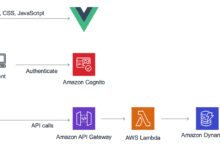
- For a serverless API, you’d likely include AWS Lambda, API Gateway, and DynamoDB.
- Data-intensive applications may require Amazon Redshift or EMR for big data processing.
Each service added appears in your estimate dashboard, where you can configure its settings individually.
Step 2: Configure Service Settings Accurately
This is where precision matters. Misconfiguring a single setting can lead to wildly inaccurate cost projections. For each service, you’ll need to specify:
Region: Choose the geographic region where resources will be hosted.Prices vary between regions (e.g., us-east-1 vs.ap-southeast-1).Instance Type or Resource Class: For EC2, select from general-purpose (e.g., t4g.medium), compute-optimized, memory-optimized, etc..
For S3, choose storage class (Standard, Intelligent-Tiering, Glacier).Usage Duration: Specify hours per day, days per month, or annual usage.For example, a production server might run 24/7, while a dev environment runs only 8 hours a day.Data Transfer: Estimate inbound and outbound data transfer.While inbound is usually free, outbound transfer (especially to the internet) can become expensive at scale.Additional Features: Enable options like EBS optimization, dedicated hosts, or enhanced monitoring if applicable.Take your time here—accuracy in configuration directly impacts the reliability of your cost estimate..
Step 3: Review, Save, and Share Your Estimate
Once all services are configured, the AWS Calculator automatically computes your total monthly or annual cost. You can view:
- A summary dashboard showing total estimated cost.
- A breakdown by service, helping identify cost drivers.
- Monthly cost trends if usage varies over time.
You can then save your estimate to your AWS account for future reference or export it as a CSV file for reporting. Sharing via a link allows team members or stakeholders to review and collaborate on the same model.
Pro tip: Create multiple scenarios (e.g., “Baseline,” “High-Traffic,” “Optimized”) to compare different architectural approaches and their financial impact.
Top 5 Hidden Features of the AWS Calculator
While many users stick to basic functionality, the AWS Calculator offers several advanced features that can dramatically improve your cost modeling accuracy. These lesser-known capabilities give savvy users a competitive edge.
1. Multi-Region Cost Comparison
One of the most powerful yet underused features is the ability to compare costs across multiple regions simultaneously. This is critical when deciding where to deploy workloads for optimal performance and cost-efficiency.
For instance, hosting an application in us-west-2 (Oregon) might be cheaper than eu-west-1 (Ireland) due to lower data transfer rates and instance pricing. The AWS Calculator lets you duplicate your configuration and switch regions to see side-by-side comparisons.
This feature is especially useful for global companies balancing latency requirements with budget constraints.
2. Reserved Instance & Savings Plans Modeling
The AWS Calculator includes built-in support for modeling cost savings from Reserved Instances (RIs) and Savings Plans. These are commitment-based pricing models that offer significant discounts (up to 72%) compared to On-Demand pricing.
When configuring EC2 instances, you can toggle between:
- On-Demand: Pay per hour with no commitment.
- Reserved Instance (1 or 3 years): Upfront or partial upfront payment for lower hourly rates.
- Savings Plans: Commit to a consistent amount of usage (e.g., $10/hour) across compute services for up to 72% savings.
By enabling these options in the calculator, you can instantly see how much you’d save annually by committing to reserved capacity.
“Companies that model RI and Savings Plan savings in the AWS Calculator reduce their cloud bills by an average of 40%.” — Flexera 2023 State of the Cloud Report
3. Custom Usage Schedules
Not all workloads run 24/7. The AWS Calculator allows you to define custom usage schedules—for example, running EC2 instances only during business hours (9 AM to 6 PM, Monday to Friday).
This is invaluable for non-production environments like development, testing, or staging servers. By setting a schedule, the calculator adjusts the hourly usage accordingly, giving a more realistic cost projection.
You can also model seasonal spikes—like e-commerce sites during Black Friday—by adjusting monthly usage patterns manually.
Common Mistakes When Using the AWS Calculator
Even experienced users make errors when estimating costs with the AWS Calculator. These mistakes can lead to budget overruns, unexpected charges, or inefficient architectures. Let’s examine the most common pitfalls and how to avoid them.
Mistake 1: Ignoring Data Transfer Costs
One of the biggest blind spots is data transfer pricing. While many assume data transfer is free or negligible, it can become a major cost driver—especially for high-traffic applications.
Key areas to watch:
- Outbound Data to the Internet: Charged per GB, with tiered pricing (cheaper at higher volumes).
- Cross-Region Replication: Transferring data between AWS regions incurs costs.
- Inter-AZ Traffic: Data transfer between Availability Zones within a region is charged (e.g., EC2 to EC2 in different AZs).
- CloudFront & Global Accelerator: While these reduce latency, they add additional transfer costs.
Solution: Always input realistic data transfer estimates. Use historical data or industry benchmarks if exact numbers aren’t available.
Mistake 2: Overlooking Free Tier Limits
The AWS Free Tier offers 12 months of free usage for many services (e.g., 750 hours of t2.micro EC2, 5 GB of S3 storage). However, the AWS Calculator does not automatically apply Free Tier discounts.
If you’re a new user, you must manually adjust your usage to reflect free tier eligibility. Otherwise, your estimate will overstate costs.
Best practice: Create two versions of your estimate—one with full pricing and one adjusted for Free Tier—to understand your true initial costs.
Mistake 3: Using Default Configurations Without Review
The calculator often defaults to common settings (e.g., general-purpose instances, standard storage). But these may not be optimal for your workload.
Example: Using gp3 EBS volumes instead of gp2 can reduce costs while improving performance. Similarly, choosing Graviton-based instances (ARM architecture) can cut EC2 costs by up to 20%.
Always review default selections and consider cost-optimized alternatives based on your performance requirements.
Advanced Strategies for Optimizing Costs with the AWS Calculator
Once you’ve mastered the basics, you can use the AWS Calculator as a strategic tool for cost optimization. These advanced techniques go beyond estimation and help you design financially efficient cloud architectures.
Strategy 1: Compare On-Demand vs. Reserved vs. Spot Instances
The AWS Calculator allows you to model three main EC2 pricing models:
- On-Demand: Flexible, no commitment, highest hourly rate.
- Reserved Instances: Lower hourly rate with 1- or 3-year commitment.
- Spot Instances: Up to 90% discount for unused capacity, but can be interrupted.
Use the calculator to compare all three scenarios. For example:
- Run critical workloads on Reserved Instances for predictable costs.
- Use Spot Instances for batch processing, CI/CD jobs, or fault-tolerant applications.
- Keep a small On-Demand footprint for flexibility.
This hybrid approach can reduce compute costs by 50% or more.
Strategy 2: Leverage Serverless and Managed Services
Serverless architectures (e.g., Lambda, DynamoDB, S3) often cost less than managing servers yourself—especially at small to medium scale.
Use the AWS Calculator to compare:
- A traditional EC2 + RDS setup vs.
- A serverless stack using Lambda + API Gateway + DynamoDB.
You’ll often find that serverless is cheaper for variable or low-traffic workloads, even after factoring in request and data transfer costs.
Strategy 3: Model Storage Tiering and Lifecycle Policies
Not all data needs to be stored in high-performance, expensive tiers. The AWS Calculator lets you model different S3 storage classes:
- S3 Standard: For frequently accessed data.
- S3 Intelligent-Tiering: Automatically moves data between tiers based on access patterns.
- S3 Glacier Instant Retrieval: For infrequent access with low retrieval latency.
- S3 Glacier Flexible Retrieval: For archives with longer retrieval times.
By estimating how much data falls into each category, you can design lifecycle policies that automatically transition objects to cheaper tiers, reducing storage costs by up to 80%.
Integrating the AWS Calculator with Other AWS Cost Tools
The AWS Calculator is just one piece of the broader AWS cost management ecosystem. To get a complete picture of your cloud finances, integrate it with other native tools.
AWS Cost Explorer
AWS Cost Explorer provides historical cost and usage data for your live AWS environment. While the AWS Calculator is predictive, Cost Explorer is retrospective.
Use both together:
- Use the AWS Calculator to plan and forecast.
- Use Cost Explorer to validate assumptions and identify discrepancies.
- Adjust future estimates based on actual usage patterns.
This feedback loop improves the accuracy of your financial models over time.
AWS Budgets
AWS Budgets lets you set custom cost and usage thresholds with alerts. Once you’ve created an estimate in the AWS Calculator, you can set a budget in AWS Budgets to monitor actual spending against your forecast.
For example:
- Create a monthly budget of $5,000 based on your calculator estimate.
- Set alerts at 80% and 100% of budget.
- Receive email or SNS notifications when spending approaches the limit.
This proactive monitoring prevents cost overruns and keeps teams accountable.
AWS Trusted Advisor
AWS Trusted Advisor offers real-time recommendations for cost optimization, security, fault tolerance, and performance.
While it doesn’t integrate directly with the AWS Calculator, its cost optimization checks (e.g., idle EC2 instances, underutilized EBS volumes) can inform your calculator inputs. For example:
- If Trusted Advisor identifies unused resources, exclude them from future estimates.
- If it recommends Reserved Instances, model those savings in the calculator.
Together, these tools form a powerful cost governance framework.
Real-World Use Cases of the AWS Calculator
Theoretical knowledge is valuable, but real-world examples show the true power of the AWS Calculator. Let’s explore three practical scenarios where it made a significant impact.
Case Study 1: Startup Launching a SaaS Platform
A fintech startup planned to launch a cloud-based accounting SaaS platform. They needed to estimate costs for:
- Web servers (EC2)
- Database (RDS PostgreSQL)
- File storage (S3)
- Authentication (Cognito)
- API layer (API Gateway + Lambda)
Using the AWS Calculator, they modeled three tiers: MVP (1,000 users), Growth (10,000 users), and Scale (100,000 users). They discovered that a serverless backend would cost 40% less than a traditional EC2 + RDS setup at the MVP stage.
They also identified that data transfer would be their second-largest cost after compute. This led them to integrate CloudFront for caching, reducing outbound data costs by 30%.
Result: Secured $500K in seed funding with a credible, data-driven cost model.
Case Study 2: Enterprise Migrating On-Premises Workloads
A global manufacturing company wanted to migrate 50 on-premises servers to AWS. They used the AWS Calculator to compare:
- Lift-and-shift migration using EC2 (similar to current setup)
- Modernized architecture with containers (ECS) and managed databases (RDS)
The calculator revealed that while lift-and-shift had higher upfront costs, the modernized approach would save $1.2M over three years due to better resource utilization and automation.
They also modeled Reserved Instance commitments and found they could save an additional 55% on compute by committing to 3-year terms.
Result: Approved migration budget with executive buy-in based on transparent cost analysis.
Case Study 3: E-Commerce Site Preparing for Holiday Surge
An online retailer used the AWS Calculator to prepare for Black Friday. They modeled:
- Baseline traffic (10,000 visits/day)
- Peak traffic (500,000 visits/day over 3 days)
- Auto-scaling groups for EC2
- Additional RDS read replicas
- Increased CloudFront and S3 data transfer
The estimate showed a 300% increase in monthly costs during the peak week. To mitigate this, they:
- Pre-provisioned Reserved Instances for baseline load
- Used Spot Instances for temporary processing tasks
- Optimized image delivery with S3 + CloudFront compression
Result: Handled peak traffic smoothly with only a 220% cost increase—80% below initial projections.
Future of the AWS Calculator: Trends and Predictions
As cloud computing evolves, so does the AWS Calculator. Amazon continues to enhance its functionality to meet growing demands for cost transparency and financial governance.
AI-Powered Cost Recommendations
Future versions of the AWS Calculator may integrate AI to provide intelligent suggestions. For example:
- Automatically recommend Graviton instances for compatible workloads.
- Suggest optimal storage tiers based on access patterns.
- Predict cost anomalies before they occur.
This would transform the tool from a passive estimator to an active advisor.
Integration with Third-Party Tools
While currently a standalone tool, AWS may open APIs to allow integration with external financial systems, CI/CD pipelines, or DevOps platforms.
Imagine a CI/CD pipeline that automatically runs a cost estimate every time infrastructure-as-code (IaC) changes are proposed, blocking deployments that exceed budget thresholds.
Enhanced Collaboration Features
Team-based collaboration is limited today. Future updates could include:
- Role-based access to estimates
- Commenting and version control
- Integration with Slack or Teams for cost alerts
These features would make the AWS Calculator a central hub for cloud financial collaboration.
How accurate is the AWS Calculator?
The AWS Calculator is highly accurate when configured correctly with realistic usage data. However, it’s a forecasting tool, not a billing system. Actual costs may vary due to unexpected usage spikes, unmonitored resources, or changes in AWS pricing. Always monitor actual spend with AWS Cost Explorer.
Can I export my AWS Calculator estimate?
Yes. You can export your estimate as a CSV file for reporting, budgeting, or sharing with stakeholders. This is useful for finance teams who need detailed breakdowns for approval processes.
Does the AWS Calculator include taxes?
No, the AWS Calculator does not include taxes, shipping fees, or other non-AWS charges. You must account for VAT, GST, or other local taxes separately when budgeting.
Is the AWS Calculator free to use?
Yes, the AWS Calculator is completely free. You don’t need an AWS account to create estimates, though you’ll need one to save and share them.
Can I model hybrid cloud setups in the AWS Calculator?
Not directly. The AWS Calculator focuses solely on AWS services. For hybrid environments (on-prem + AWS), you’ll need to manually combine AWS estimates with on-prem cost data from other sources.
Mastering the AWS Calculator is a critical skill in today’s cloud-driven world. From startups to enterprises, accurate cost estimation prevents budget overruns and enables smarter decision-making. By understanding its features, avoiding common mistakes, and using advanced strategies, you can turn this tool into a powerful financial planning engine. Combine it with other AWS cost management tools for a complete view of your cloud economics. As AWS continues to innovate, the calculator will only become more intelligent and indispensable. Start using it today to take control of your cloud costs tomorrow.
Further Reading: